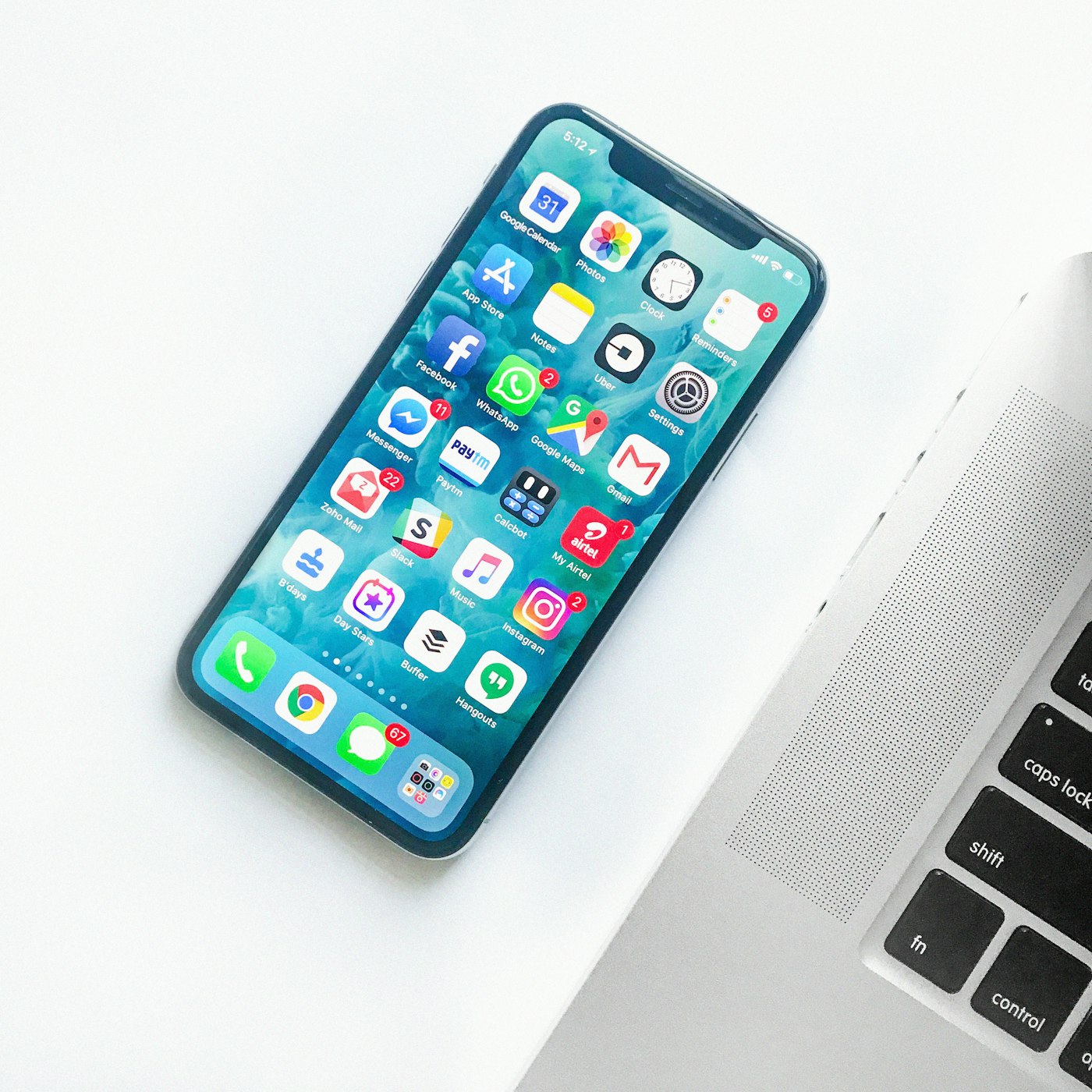
Você envia uma foto feita com o iPhone e a outra pessoa não consegue abri-la, ou um formulário recusa o arquivo sem explicar o motivo. Muitas vezes o problema é o formato HEIC, eficiente no celular, mas ainda incompatível com alguns serviços e dispositivos.
O HEIC economiza espaço no iPhone, mas muitos sites, computadores e serviços ainda usam JPG. A diferença é de compatibilidade: vale manter o original no celular e converter uma cópia quando outro sistema não aceitar o arquivo.
A Apple explica a troca em linguagem simples. Na nota sobre fotos HEIF, a empresa diz que as fotos do iPhone usam High Efficiency Image Format para economizar espaço, e o arquivo costuma ter cerca de metade do tamanho de um JPEG parecido. O próprio padrão HEIF vem da MPEG, não de um único fabricante de celular, por isso HEIC (o recipiente da Apple) e HEIF (o formato) são usados como se fossem gêmeos.
O formato não foi adotado por todos os serviços e sistemas. Formulários de envio, computadores Windows antigos e muitos serviços de impressão ainda esperam JPEG. Isso é um problema de compatibilidade, não de qualidade, por isso converta uma cópia e guarde o original.
Por que o iPhone faz isso
A Apple adotou o HEIC como formato padrão da câmera em 2017 por um motivo prático: ele armazena uma foto com cerca de metade do tamanho de um JPG semelhante, mantendo qualidade próxima. A economia é significativa em uma biblioteca com milhares de imagens, e os arquivos são sincronizados normalmente dentro do ecossistema Apple.
O problema aparece quando o HEIC sai do ecossistema Apple. O formato é eficiente para armazenamento, mas essa diferença de compatibilidade ainda afeta formulários e computadores com Windows.
Onde o HEIC esbarra
- PCs Windows mais antigos: muitos precisam de um codec extra só para ver a prévia, e seu tio não vai instalar codec.
- Formulários de upload na web: candidatura a emprego, portal de visto, anúncio de marketplace e sistema escolar muitas vezes aceitam só JPG ou PNG.
- Programas antigos: editores de foto e aplicativos de escritório podem exibir o arquivo incorretamente ou não conseguir abri-lo.
- Quiosques e lojas de impressão: alguns lidam bem com HEIC, vários não, e você descobre no balcão.
- Anexo de e-mail: aplicativos de mensagem costumam converter a foto para Android, mas um HEIC anexado diretamente pode chegar como um arquivo que o destinatário não consegue abrir.
Nada disso torna o HEIC ruim, apenas menos compatível fora do ecossistema da Apple. Quando a foto precisar ser enviada para outro serviço ou dispositivo, crie uma cópia em JPG.
Converta
- Converta uma cópia para JPG.
- Escolha JPG como saída.
- Selecione o arquivo HEIC. O limite de 25 MB atende à maioria das fotos feitas com o iPhone.
- Baixe a cópia em JPG e envie o arquivo.
O processo exige apenas selecionar o arquivo e iniciar a conversão, sem conta, instalação ou marca d'água na foto. A ferramenta processa uma imagem por vez, por isso três arquivos precisam de três conversões.
Original e cópia
Uma organização simples é manter o HEIC no celular como arquivo original e criar cópias em JPG quando for preciso compartilhar. A conversão recodifica a imagem e pode causar uma pequena perda de qualidade, normalmente imperceptível na tela. Evite converter repetidamente entre formatos, porque cada nova etapa aumenta a degradação.
O JPG pode ficar maior do que o HEIC original. Isso é normal, porque o formato mais antigo costuma precisar de mais espaço para guardar uma imagem com qualidade semelhante. Se o formulário também limitar o tamanho do arquivo, comprima a cópia em JPG antes do envio.
Se você não quiser converter cada foto, o iPhone pode salvar novas imagens diretamente em JPG: nos ajustes da câmera, troque Alta Eficiência por Mais Compatível. Os novos arquivos terão maior compatibilidade, mas poderão ocupar cerca do dobro do espaço. As fotos existentes continuarão em HEIC, por isso o conversor ainda será útil para o acervo; para a maioria das pessoas, vale manter o formato eficiente no celular e converter apenas o que precisa ser enviado.
O que converter não resolve
Converter não aumenta a nitidez, a resolução nem a qualidade da foto. Um HEIC desfocado continuará desfocado em JPG, porque a conversão muda o formato, não o conteúdo da imagem.
Há mais dois pontos importantes. As capturas de tela do iPhone já são salvas em PNG, não em HEIC, então outro fator explica uma eventual falha no envio. Se um arquivo não puder ser convertido, confirme também se ele é uma foto e não um vídeo com nome parecido.
A pasta de HEICs
Eu não converto toda a biblioteca sem necessidade. Converto apenas a foto recusada pelo formulário e mantenho o HEIC original no celular, usando o JPG como cópia compatível.
Se um amigo no Android não consegue abrir o arquivo, envio uma cópia em JPG pelo aplicativo de mensagens. Explicar ou instalar um codec pode tomar mais tempo do que fazer a conversão.
Para impressão, pergunto à gráfica quais formatos ela aceita antes de converter. Alguns estabelecimentos já trabalham com HEIC, enquanto outros ainda pedem JPG.
Quando o formulário limita o tamanho depois da conversão, comprimo o JPG. O aumento em relação ao HEIC é esperado e não indica uma falha no processo.
Não converto repetidamente entre HEIC e JPG na tentativa de recuperar qualidade, porque cada recodificação pode degradar um pouco a imagem. Crio uma única cópia em JPG e mantenho o original intacto.
Em períodos com muitos formulários ou viagens, posso alterar a câmera do iPhone para Mais Compatível e salvar novas fotos em JPG. Os arquivos anteriores continuam em HEIC, portanto o conversor ainda será necessário para o acervo existente.
Depois de converter, abro o JPG antes de enviá-lo e confirmo se a orientação, as cores e as dimensões continuam corretas. Também comparo o tamanho do arquivo com o limite informado pelo formulário, porque compatibilidade e peso são problemas diferentes.
O HEIC pode permanecer no celular como original, enquanto uma cópia em JPEG é usada em serviços que exigem maior compatibilidade. Evite conversões repetidas entre formatos, porque cada recodificação pode reduzir a qualidade.